Saturday, January 16, 2016

How to Identify Web Elements Using Firebug

For QA, when you write automation test script you have to know id, name or xpath of web elements.
Below is how I use Firebug to identify.
For example, on website http://cungshopping.com, at "Đăng nhập" form I need to know id/name/xpath of "Mật khẩu" textbox (the green one)

Steps I do as below:
1. Launch Firefox browser and navigation to http://cungshopping.com, click "Đăng nhập" link to navigate to the form that has element you want to know id/name/xpath
2. On menu bar: Tools > Web Developer > Fire bug > Open Firebug
or press F12 to open Firebug window

 The Firebug window open at the bottom as below

3. On Firebug window, click on icon "Click an element in the page to inspect" (the green icon as below)

 4. Then move over on the "Mật khẩu" textbox until the textbox is highlighted in blue color, you will see in the Firebug window the HTML for this element is highlighted too.
So you know the textbox has id="password", name="password". If you want copy any information, you just click on that and "Ctrl +C" to copy.


To copy xpath, on Firebug window, right click on the element --> copy XPath

Steps to install Firebug

Firebug integrates with Firefox to put a wealth of development tools at your fingertips while you browse. You can edit, debug, and monitor CSS, HTML, and JavaScript live in any web page...
For QA, this is a helpful tool to indicate ID, Name or xpath of components on the webpage.
Steps to install:
1. Launch Firefox and navigate to https://addons.mozilla.org/en-US/firefox/addon/firebug/
2. Click on button "Add to Firefox"

3. Click on "install" button from popup dialog

4. When the installation finish, you will see a dialog appear

5. Tool > Web Developer > Firebug >  Open Firebug of press F12 to open Firebug

6. Firebug window is shown as below:


Wednesday, January 13, 2016

How to install Selenium IDE Firefox plugin


Selenium IDE is an integrated development environment for Selenium scripts. It is implemented as a Firefox extension, and allows you to record, edit, and debug tests. Selenium IDE includes the entire Selenium Core, allowing you to easily and quickly record and play back tests in the actual environment that they will run in.
Steps to install Selenium IDE:
1. Launch Firefox and navigate to http://www.seleniumhq.org/download/
2. At "Selenium IDE" click on the link "from addons.mozilla.org"

3.Click on button "Add to Firefox"
 4. Click on button "Install" on popup window
5. Choose "Restart Now" on popup window
6. After Firefox restart, you can open Selenium IDE
Tools --> Selenium IDE
or
Tools --> Web Developer --> Selenium IDE
or use Shortcut keys: Ctrl +Alt +S

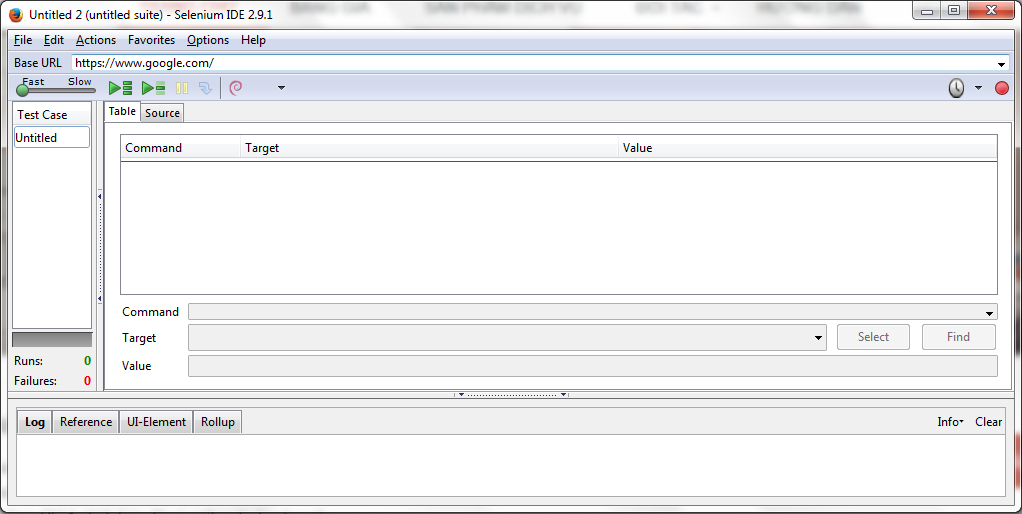
Selenium IDE is shown as below


Tuesday, January 12, 2016

How to estimate the time to test

It depend on:
1. How big is the project, complex business
2. QA resources and experience of QA
3. Testing tool: automation tools, defect tracking tools, project management tools
4. How many kind of testings to be performed: function, performance, load

Test a text field

1. The default values
2. The null values
3. Test boundary value (number field)
4. Test equivalence value (number field)
5. Max length
6. One/multiple spaces after name
7. One/multiple spaces front of name
8. Special characters, Html tags, single quotes, double quotes

Steps to build a product

1. Client requirement (SOW)
2. Requirement documents (technical requirement)
3. UIS
4. Photoshop Design
5. IDev designs html/css
6. Developer
7.Testing

Test number text fields

1. Blank value
2. Max length
3. Negative value
4. Boundary value
5. Equivalence value
6. Invalid input (special character, alpha character)